
436 字
2 分鐘
#5 透過Graph API取得AAD使用者清單 — 簡單入門Azure AD

微軟提供的Microsoft Graph API可以存取各種使用者資料,本篇將說明如何透過API取得Azure AD組織使用者清單。
建立應用程式
承上篇,我們需要再Azure AD後台建立一個應用程式,並記起來應用程式識別碼、目錄識別碼。
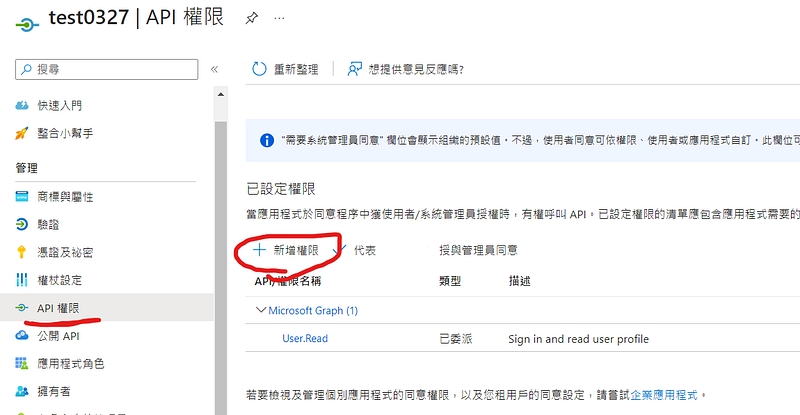
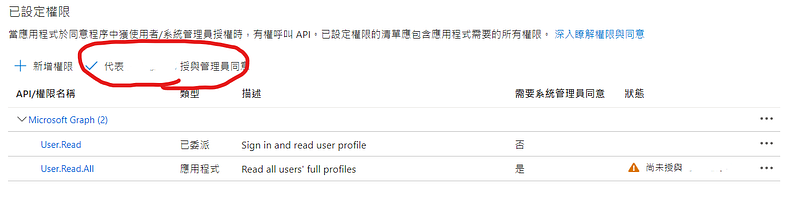
接下來要新增讀取權限,到API權限,選擇新增權限
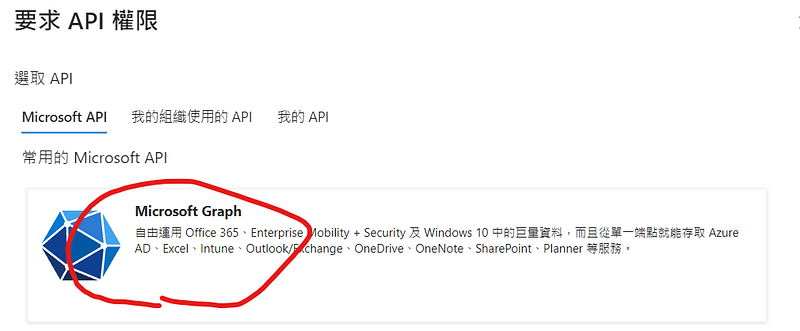
選擇 Microsofy Graph
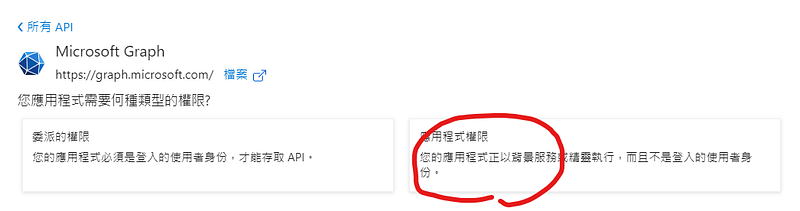
選擇應用程式權限,打勾User.Read.All
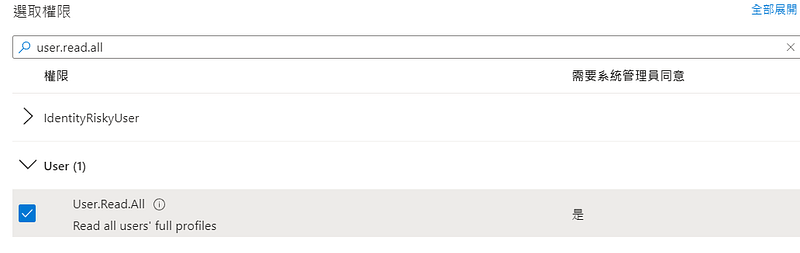
點選代表管理員同意
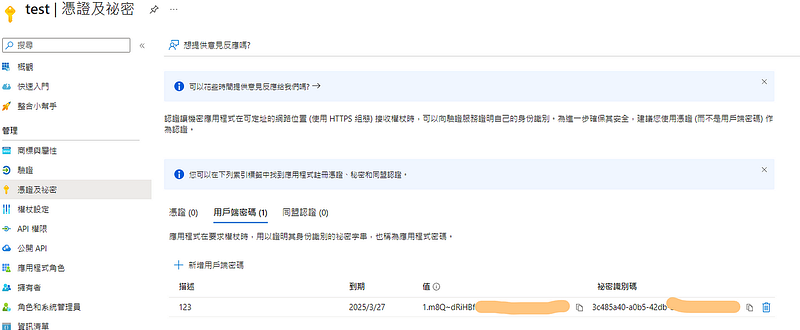
接下來點選”憑證及秘密”,新增用戶端密碼,產生一組Secret,把產生的值記下來。
撰寫後端
我們一樣用Cloudflare Worker練習,進入到首頁的時候顯示使用者清單。
const tenant_id = '<目錄識別碼>';const client_id = '<應用程式識別碼>';const client_secret = '<用戶端密碼>';
export default { async fetch(request, env) { return await home(request); }}
async function home(request) { var url = `https://login.microsoftonline.com/${tenant_id}/oauth2/v2.0/token`; const { searchParams } = new URL(request.url); let code = searchParams.get('code'); var options = { method: 'POST', headers: { 'content-type': 'application/x-www-form-urlencoded', }, body: new URLSearchParams({ client_id: client_id, client_secret: client_secret, scope: 'https://graph.microsoft.com/.default', grant_type: 'client_credentials' }).toString() }; var response = await fetch(url, options); var results = await response.json();
var token = results["access_token"]; url = `https://graph.microsoft.com/v1.0/users?$top=999&$filter=accountEnabled eq true`; options = { method: 'GET', headers: { 'Authorization': 'Bearer ' + token, 'content-type': 'application/json' }, }; response = await fetch(url, options); results = await response.text();
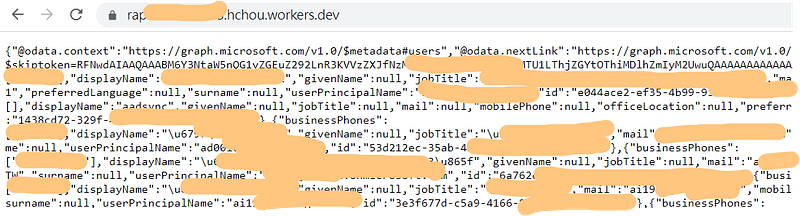
return new Response(results);}這樣就可以取得所有使用者資料了,微軟使用者API最多取得999筆資料,我就先取得最多,並加上我只回傳啟用中的使用者accountEnabled = true。
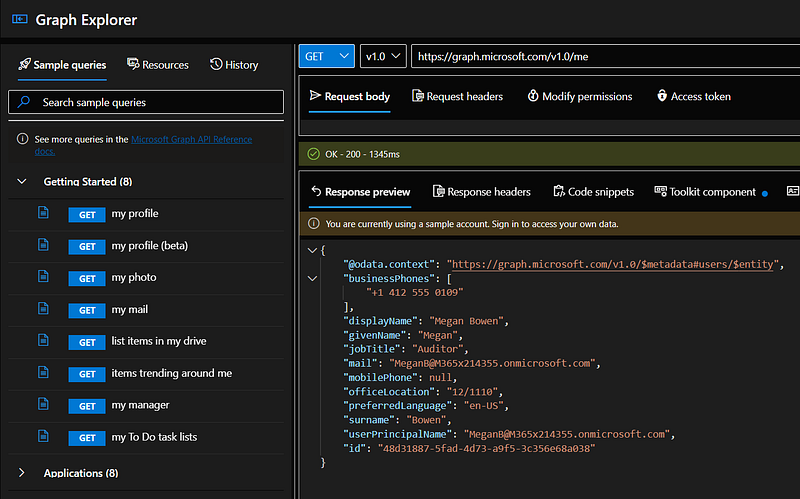
更多說明請看微軟文件,也可以到Graph Explorer,線上練習一下微軟API如何使用。
結語
透過這樣我們就能取得所有使用者資訊,後台應用程式也可以定時去更新資料。